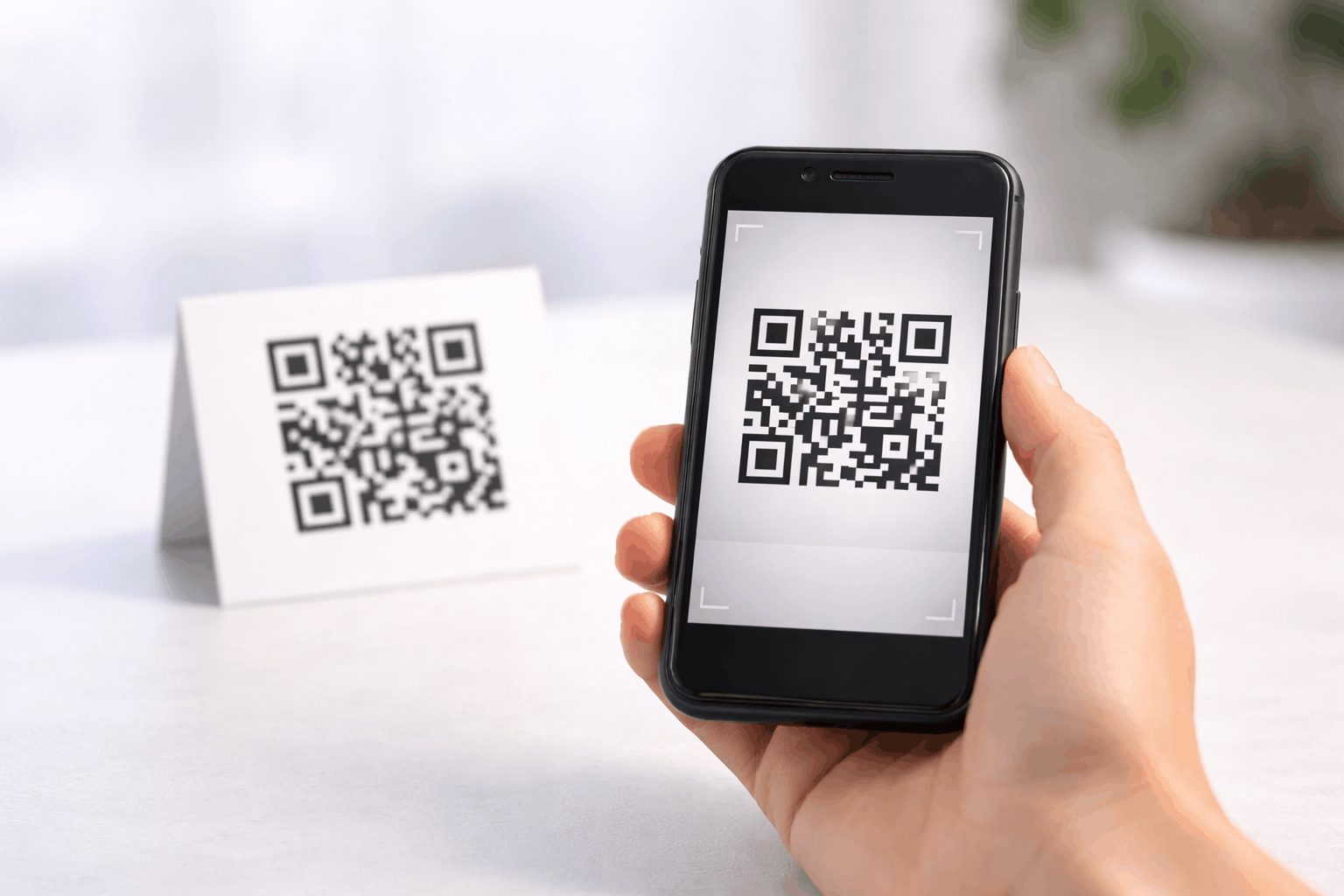
Printing QR codes incorrectly can lead to scan failures, poor user experience, and lost engagement. To ensure your QR codes remain scannable after printing, you must consider file format, resolution, size, contrast, materials, and printer settings. This guide explains best practices to print QR codes without losing quality and avoid common mistakes.
Why QR Code Print Quality Matters
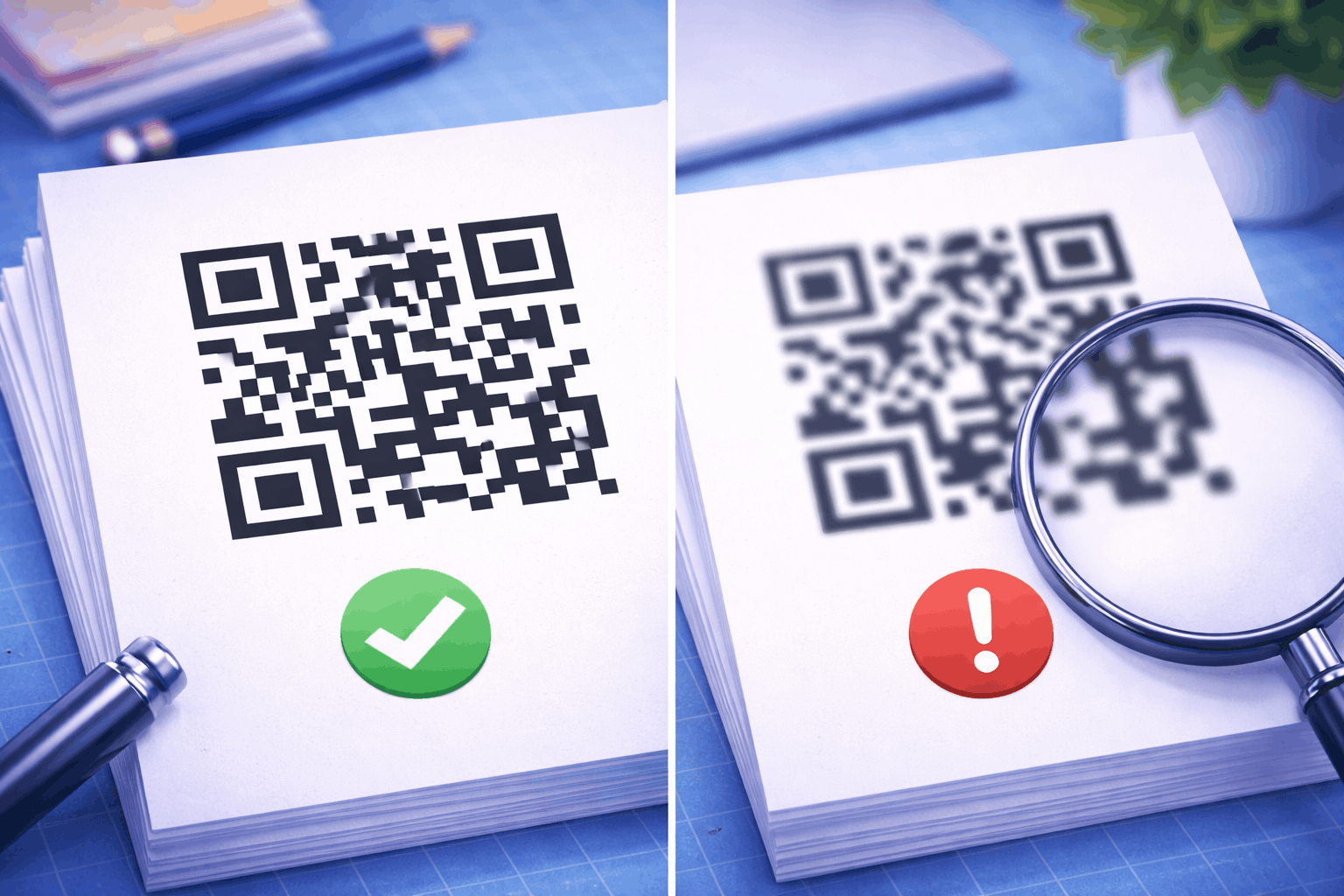
QR codes rely on precise patterns and contrast to be scanned accurately. When printed with low quality, blurred edges, or poor contrast, scanners may fail to read the code.
Print quality becomes even more important for physical environments where lighting, distance, and wear can affect scannability. A QR code that works on screen may not work when printed.
Ensuring proper print quality protects usability and prevents users from abandoning the scan.
Choose the Right File Format for Printing
Choosing the correct file format is the foundation of high quality QR code printing. Vector formats such as SVG or EPS are ideal for print because they scale without losing clarity.
Raster formats like PNG or JPG can work, but only if exported at high resolution. Low resolution raster images often appear pixelated when enlarged.
For professional printing, always prefer vector files whenever possible.
Vector vs Raster QR Codes for Print Quality
Vector QR codes are made of mathematical paths rather than pixels. This allows them to scale to any size without losing sharpness.
Raster QR codes are pixel based. If scaled beyond their original size, they lose clarity and may become unscannable.
For large prints such as posters, banners, or signage, vector QR codes are strongly recommended. Understanding How Do QR Codes Work The Technology Behind the Black and White Squares helps explain why sharp edges matter for scanning.
Ensure Sufficient Resolution and DPI
Resolution and DPI play a major role in print quality. For raster images, a minimum of 300 DPI is recommended for printing.
Low DPI images may look fine on screens but appear blurry when printed. This blur affects the contrast between black and white modules in the QR code.
Always export QR codes at print-ready resolution, especially when using raster formats.
Determine the Appropriate QR Code Size
QR code size should match the scanning distance. A small QR code printed on a poster may not scan from far away.
As a general rule, the farther the scanning distance, the larger the QR code should be. For close-range scanning, smaller sizes may work.
Testing different sizes before final printing helps ensure reliable scanning in real-world conditions.
Maintain Adequate Color Contrast
High contrast between the QR code and its background is essential. Dark codes on light backgrounds scan best.
Avoid light color's, gradients, or patterned backgrounds that reduce contrast. Inverted color schemes should be tested carefully before use.
Poor contrast is one of the most common reasons printed QR codes fail to scan.
Select the Right Printing Material
Printing material affects how QR codes appear and scan. Glossy surfaces can cause glare, making scanning difficult under bright light.
Matte finishes usually provide better scan reliability. Textured surfaces may distort the QR code pattern and reduce accuracy.
Choose materials that preserve clarity and minimize reflections.
Use Proper Printer Settings
Printer settings can significantly impact output quality. Use high-quality or best print settings when printing QR codes.
Disable scaling options that automatically resize images. Ensure the QR code is printed at its intended size.
Calibrate printers if necessary to avoid ink bleeding or smudging that can distort the code.
Common QR Code Printing Mistakes to Avoid
One common mistake is stretching or compressing the QR code, which alters its proportions. QR codes must remain square to scan correctly.
Another mistake is placing QR codes too close to edges or other design elements. Always leave sufficient quiet zone space around the code.
Using low resolution screenshots instead of original files is another frequent issue. Always print from the original QR code file.
Test Your Printed QR Codes Before Distribution
Testing is a critical final step. Scan printed QR codes using multiple devices and camera apps.
Test under different lighting conditions and from various distances. This helps identify issues before mass distribution.
For safety considerations when scanning, Are QR Codes Safe Security Risks and Best Practices provides additional guidance.
Frequently Asked Questions
- What is the best format for printing QR codes?
Vector formats such as SVG or EPS are best for printing because they scale without losing quality.
- What DPI should I use for printing QR codes?
A minimum of 300 DPI is recommended for raster QR code images used in print.
- Can I print QR codes in color?
Yes, but high contrast between the code and background is essential to maintain scannability.
- Why does my printed QR code not scan properly?
Common reasons include low resolution, poor contrast, incorrect size, or printing on reflective materials.
Conclusion
Printing QR codes without losing quality requires attention to detail at every step. By choosing the right file format, resolution, size, contrast, materials, and printer settings, you can ensure your QR codes remain scannable in real-world conditions. Proper testing before distribution helps avoid costly mistakes and ensures a smooth user experience.