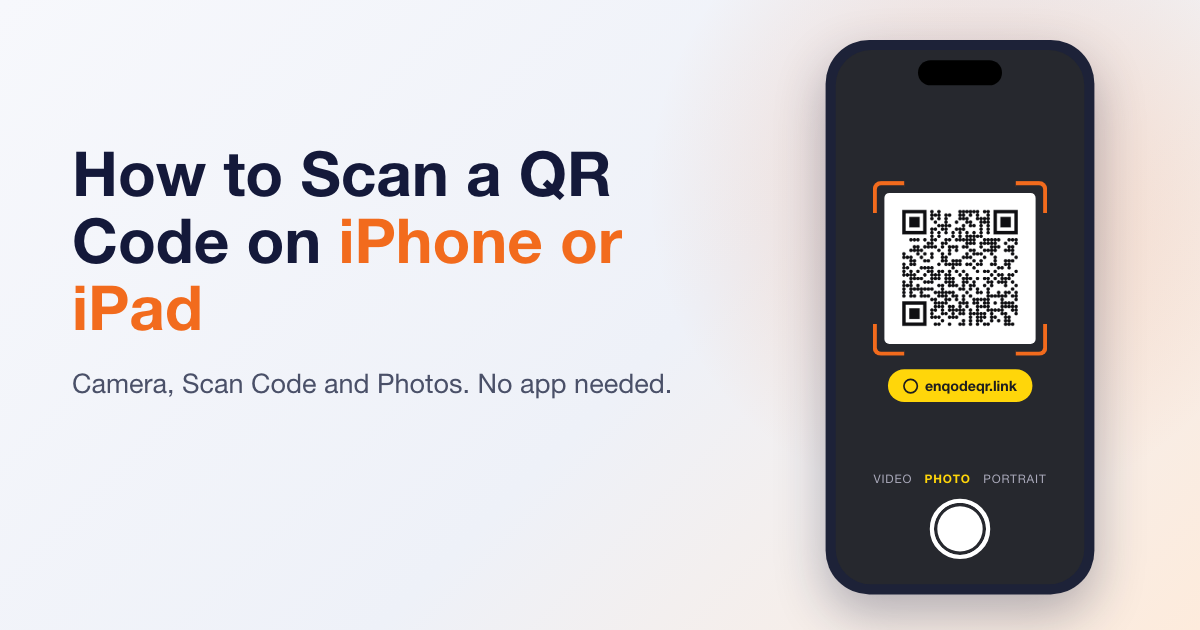
To scan a QR code on iPhone, open the Camera app, point it at the code and tap the link that appears. You can also tap Scan Code in Control Center, or touch and hold a code in a photo or screenshot in the Photos app. For codes in PDFs, emails or saved images, open the free online QR code scanner in Safari. The same steps work on iPad.
How to Scan a QR Code on iPhone
You can scan a QR code on iPhone without installing an app. Your iPhone gives you four ways:
- Camera app: point it at the code and tap the link.
- Scan Code control: tap it in Control Center for a scanner that opens straight away.
- Photos app: touch and hold a code in a photo or screenshot.
- Online QR code scanner: open the free QR code scanner in Safari for codes in PDFs, emails and saved images.
Use the camera for printed codes, and Photos or the online scanner for codes already on your iPhone. Every way shows the link first, so you can check where it goes.
1. Use the Camera App
Open the Camera app from the Home Screen, the Lock Screen or Control Center. Hold your iPhone so the QR code is in view, and a yellow link appears under the code. Check the domain, then tap it to open the page.
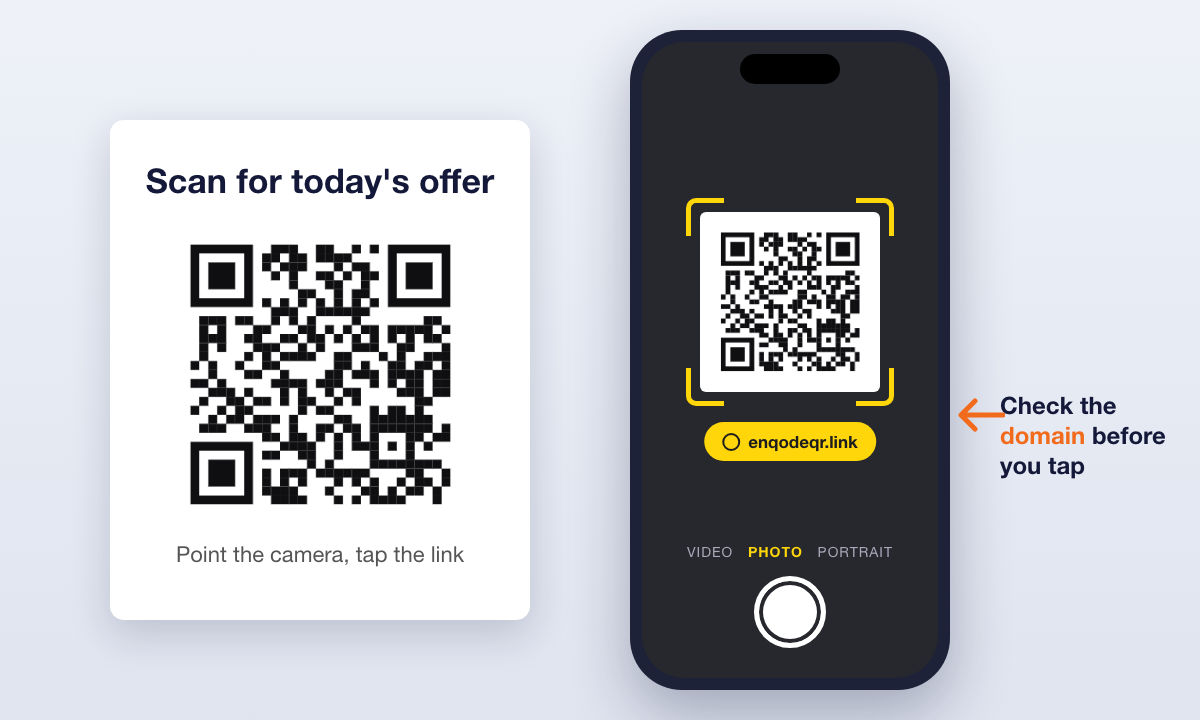
Open the Camera Faster With Camera Control
On iPhone models with Camera Control, press the Camera Control button to open the Camera, then point it at the code (Apple's guide).
2. Use the Scan Code Control in Control Center
Swipe down from the top-right corner of the screen to open Control Center, then tap Scan Code. The scanner opens straight away. Point it at the code and tap the link.
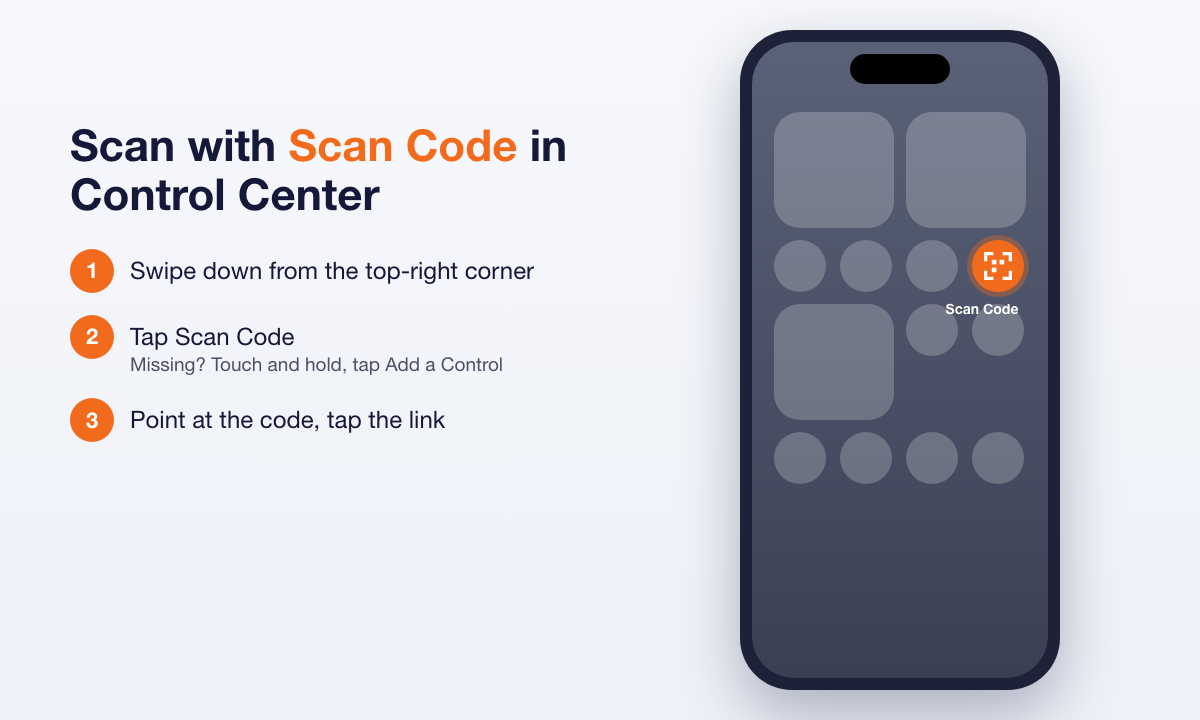
Add Scan Code to Control Center
Open Control Center, touch and hold the background, then tap Add a Control. Tap Scan Code in the gallery, then tap anywhere on the screen to go back. The control stays in Control Center for next time.
3. Scan a QR Code From a Photo or Screenshot
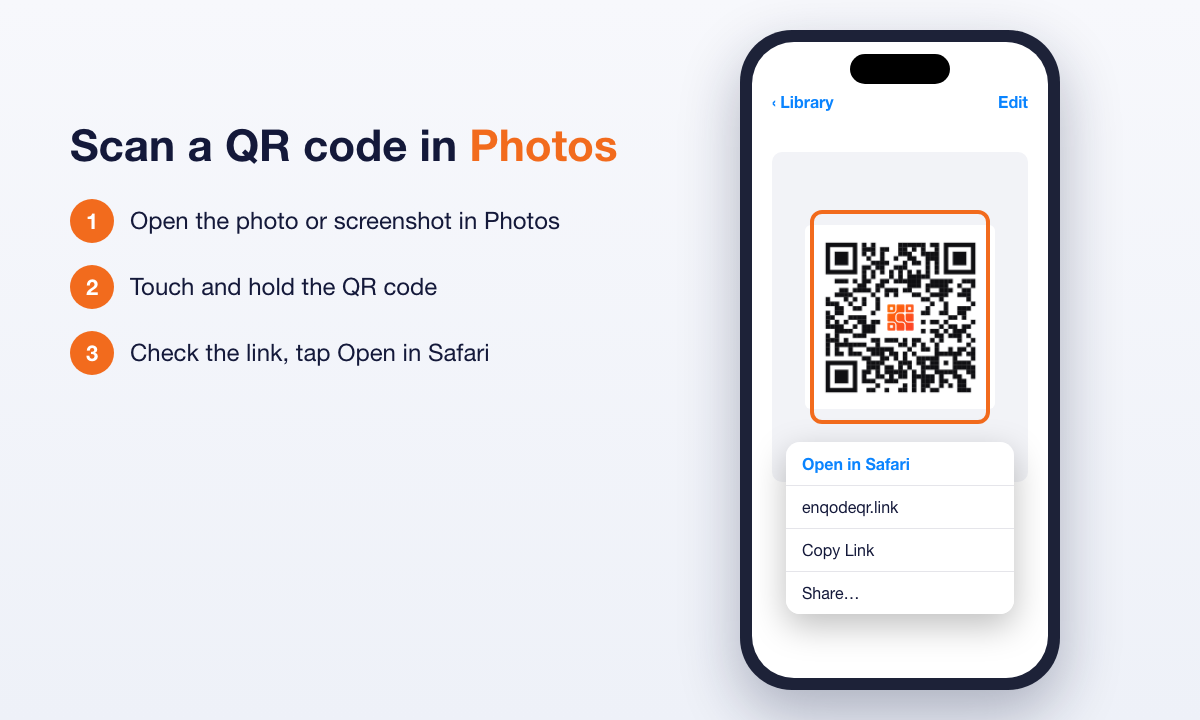
Open the photo or screenshot in the Photos app, then touch and hold the QR code. A menu shows the link. Check it, then tap Open in Safari.
4. Use the Online QR Code Scanner in Safari
The free online QR code scanner works in Safari on iPhone and iPad, with nothing to install. It reads codes with your camera or from any image in your library, and it shows the domain before you open the link.
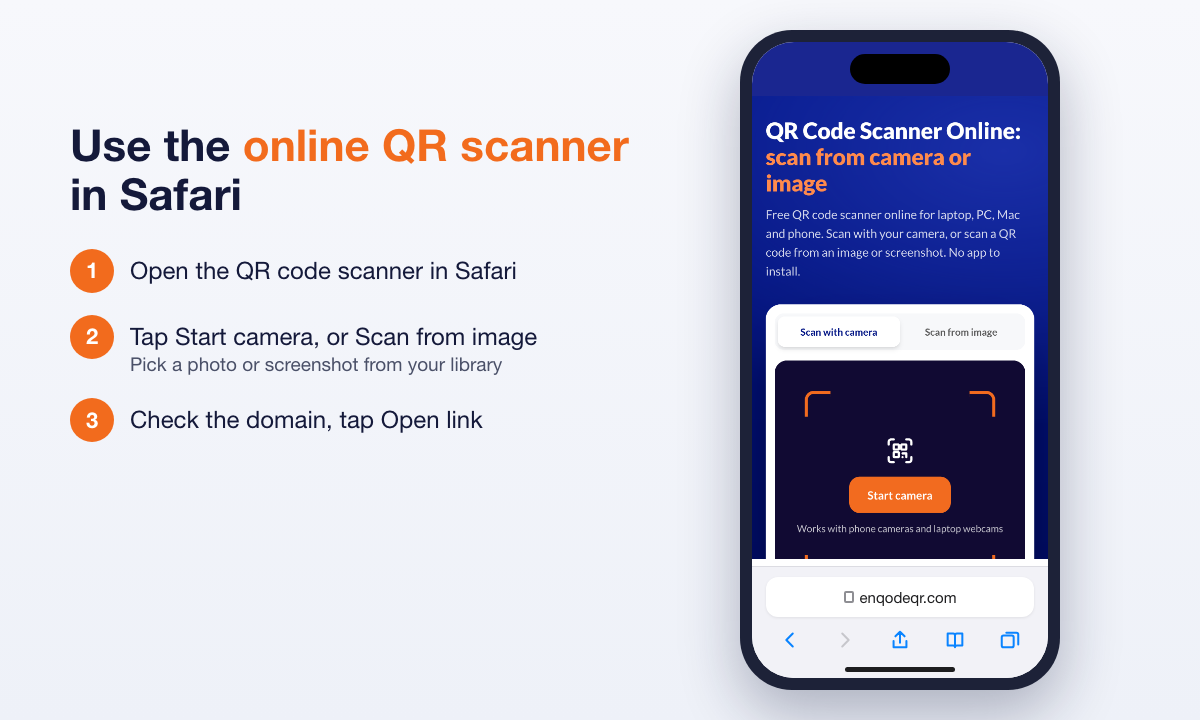
Scan With Your Camera
Open the QR code scanner in Safari and tap Start camera. Allow the camera when Safari asks, then point it at the code.
Scan From a Photo or Screenshot
Tap Scan from image, then tap Choose image and pick the picture from your Photo Library or Files. The scanner finds the code anywhere in the image.
Check the Link and Open It
The result shows the link and the domain it opens. Tap Open link, or Copy to paste it somewhere else. The code is read in Safari, so your camera picture and images stay on your iPhone.
Scan a Code on Your iPhone Screen
When a QR code is in a message, an email or a web page on your iPhone, take a screenshot first. Press the side button and the volume up button together, then open the screenshot in Photos and touch and hold the code. You can also upload the screenshot in the QR code scanner.
For more ways on every device, see how to scan a QR code from an image.
Scan QR Codes on iPad
Your iPad scans QR codes the same way as your iPhone:
- Camera app: open it and point the back camera at the code.
- Scan Code: swipe down from the top-right corner and tap Scan Code.
- Photos app: touch and hold a code in a photo or screenshot.
- Online scanner: open the QR code scanner in Safari, which suits codes in PDFs and emails on the larger screen.
iPhone QR Code Not Scanning? Quick Fixes
Most failed scans come down to a setting, light or distance. Work through these:
- No link appears in the camera. Open Settings, then Camera, and turn on Scan QR Codes. Or use the Scan Code control instead.
- Dim light or glare. Face a light source and tilt shiny paper or a screen away from lamps and windows.
- Too close or too far. Move your iPhone until the whole code fills about half of the frame.
- A smudged lens. Wipe the camera lens and try again.
- It still fails. Take a sharp photo of the code and upload it with Scan from image in the online scanner.
FAQ
Check the domain your iPhone shows before you tap, and be careful with shortened links and codes in unexpected messages. Our guide to whether QR codes are safe shows how QR code scams work.
Conclusion
Scanning a QR code on iPhone or iPad takes a second with the tools already on it. Use the Camera or Scan Code for printed codes, Photos or the online scanner for codes on your screen, and check the domain before you tap any link.