Most Android phones can scan QR codes without installing any additional apps. Built in camera apps, Google Lens, quick settings shortcuts, and even the Chrome browser support QR code scanning. This guide explains all native methods to scan QR codes on Android and includes fallback options for older devices that do not support built in scanning.
How to Scan a QR Code on Android Without Installing an App
Android devices now include native QR code scanning features that eliminate the need for third party apps. Depending on your device brand and Android version, you may already have multiple ways to scan QR codes.
Most modern Android phones support QR scanning through the camera app or Google services. Even if your phone is older, there are still built in fallback options available.
Before scanning, ensure your camera lens is clean and the QR code is clearly visible.
Use the Built-in Camera App
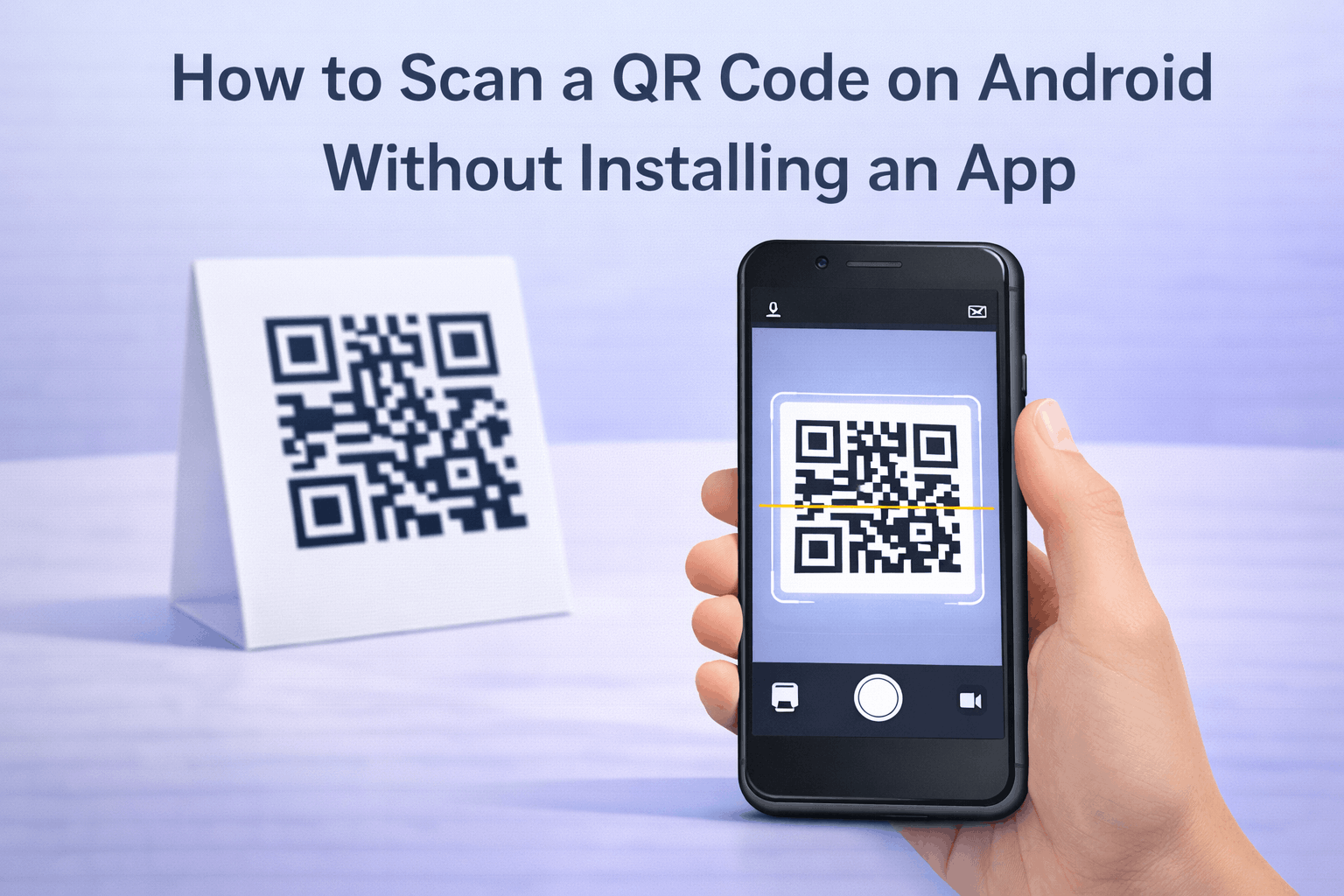
Many Android phones can scan QR codes directly using the default camera app. Open the camera app and point it at the QR code.
Hold the phone steady and make sure the QR code fits inside the frame. A notification or link should appear automatically on the screen.
If nothing happens, check your camera settings. Some phones require QR scanning to be enabled manually in camera options.
Use Google Lens (Built-in or via Google Assistant)
Google Lens is one of the most reliable ways to scan QR codes on Android. It is built into most Android devices and works even when camera apps do not support scanning directly.
You can access Google Lens from the camera app, Google Search widget, or Google Assistant. Once opened, point it at the QR code and wait for the result.
Google Lens can also scan QR codes from images, screenshots, or photos already saved on your phone.
Use Quick Settings or Pull-Down Scanner Tiles
Some Android brands provide a dedicated QR scanner shortcut in the quick settings menu. Swipe down from the top of your screen to open the notification panel and look for a QR scanner tile.
Samsung devices often include this feature under quick settings. Xiaomi and other MIUI based devices may include similar shortcuts.
If available, tap the QR scanner tile and point your camera at the QR code to scan instantly.
Scan QR Codes Using Chrome’s Built-In Scanner
The Google Chrome browser on Android includes a built-in QR code scanner. Open Chrome, tap the address bar, and look for the scan icon or camera option.
Once activated, point the camera at the QR code and Chrome will display the linked content. This method works well if other scanning options are not available.
Chrome scanning does not require any additional downloads and works on most Android versions.
What to Do If Your Android Phone Does Not Support QR Scanning
Older Android phones may not support QR scanning through the camera app. In such cases, Google Lens is usually the best fallback option.
If Google Lens is unavailable, using Chrome’s QR scanner is another reliable method. These options do not require installing separate QR scanner apps.
As a last resort, updating your Android system may enable built-in QR scanning if your device supports newer features.
Common QR Code Scanning Issues and Troubleshooting
If a QR code does not scan, poor lighting is often the cause. Ensure the area is well lit and avoid glare or reflections.
Blurry cameras or damaged QR codes may also prevent scanning. Move closer or farther until the code is clear.
If scanning still fails, try a different built in method such as Google Lens or Chrome. Understanding How Do QR Codes Work The Technology Behind the Black and White Squares can help explain why some scans fail.
Frequently Asked Questions
- Can all Android phones scan QR codes without an app?
Most modern Android phones can scan QR codes using built in features, but older devices may rely on Google Lens or Chrome.
- Do I need internet access to scan a QR code?
Scanning does not require internet access, but opening online content linked to the QR code does.
- Why does my camera not scan QR codes automatically?
Some phones require QR scanning to be enabled in camera settings, or may not support native scanning.
- Is scanning QR codes on Android safe?
Yes, scanning is safe as long as you avoid opening links from unknown sources. For more details, see Are QR Codes Safe Security Risks and Best Practices.
Conclusion
Scanning QR codes on Android does not require installing additional apps in most cases. Built in camera features, Google Lens, quick settings shortcuts, and Chrome provide reliable ways to scan QR codes. Even older Android devices have fallback options that make QR code scanning easy and accessible.