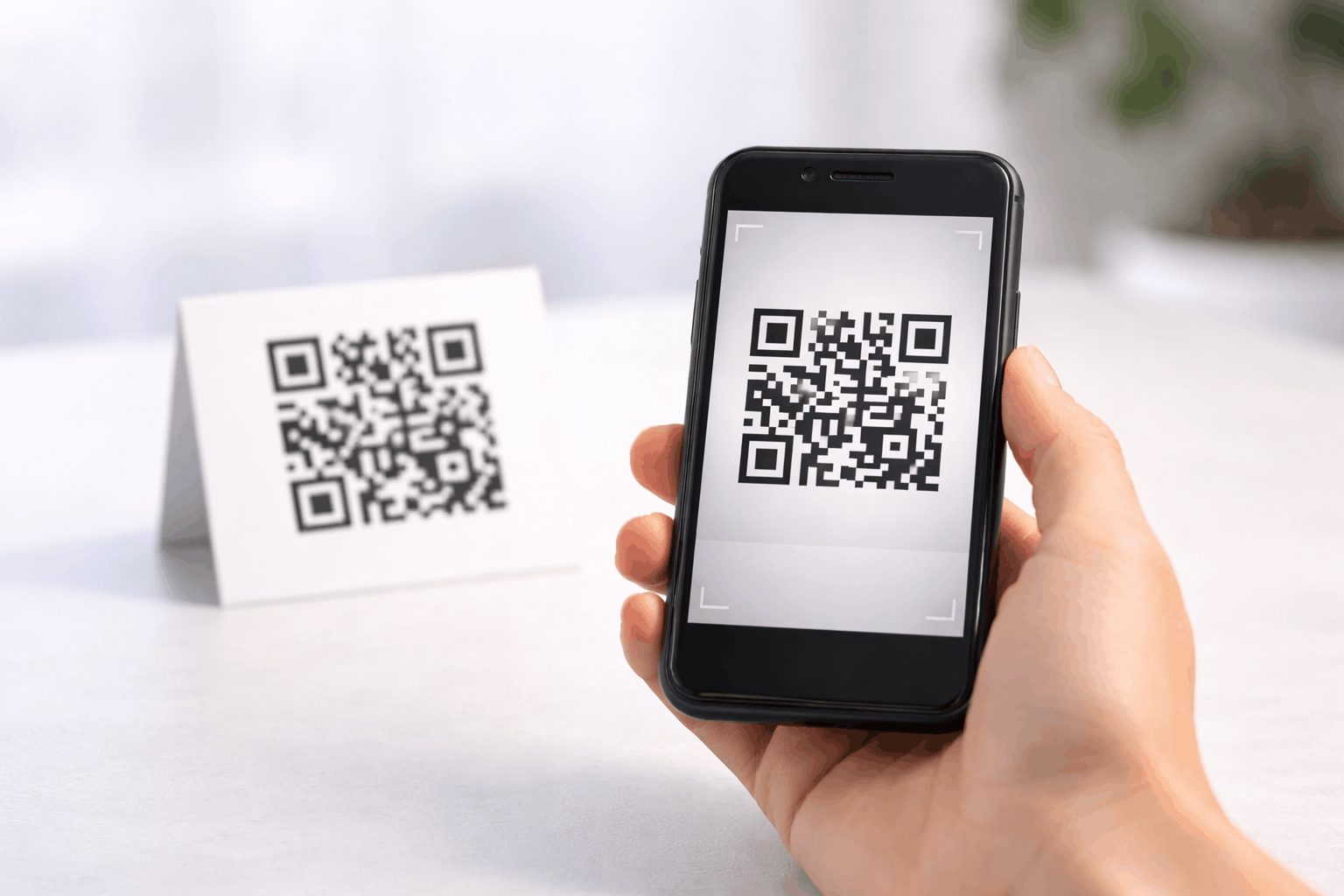
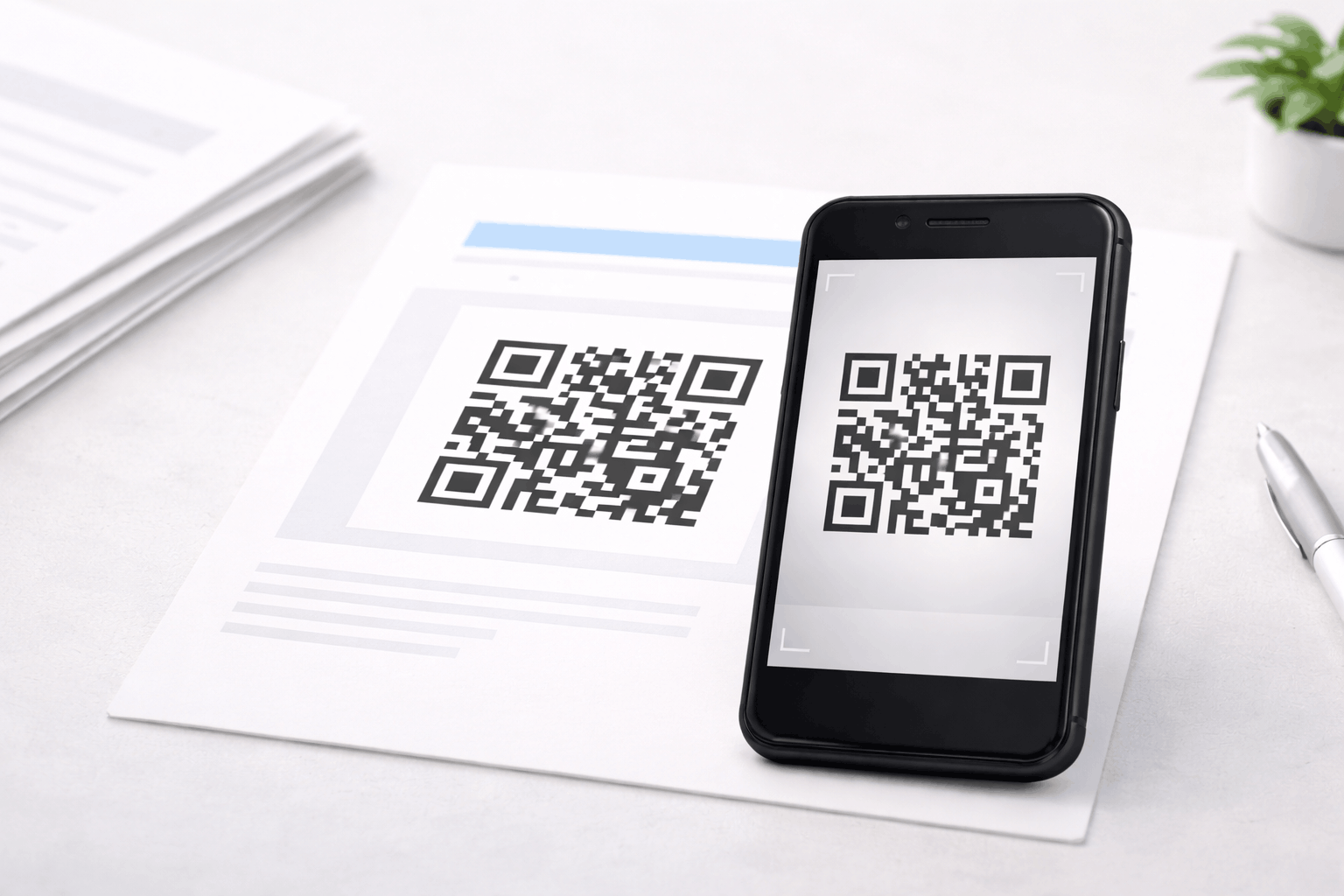
This guide explains how to create a file QR code to share documents like PDFs, Word files, PPTs, or Excel files through a single scan. You’ll learn what a file QR code is, what you need before creating one, how to generate it step by step, best practices to follow, and common mistakes to avoid.
What Is a File QR Code
A file QR code is a type of QR code that allows you to share digital files such as PDFs, Word documents, PowerPoint presentations, or Excel sheets. When scanned, the QR code opens or downloads the file directly on the user’s device.
File QR codes are commonly used when you want to distribute documents without sending emails or relying on physical storage devices. They help make file sharing faster, more accessible, and easier to manage.
What You Need Before Creating a File QR Code
Before creating a file QR code, you need to have the file ready in a supported format, such as PDF, DOCX, PPT, or XLS. The file should be final or reviewed to ensure users always access the correct version.
It’s also important to consider where the QR code will be used, such as printed materials, presentations, or digital screens. This helps determine file size, QR code size, and whether the content may need to be updated later.
How to Create a File QR Code (Step-by-Step)
Creating a file QR code is straightforward and follows a simple three-step process.
- 1
Choose your QR code type: Start by selecting the file option from the available QR Code Types. This ensures the QR code is configured to open or download a file when scanned.
- 2
Upload & Customize: Upload the file you want to share, such as a PDF, Word document, PPT, or Excel file. After uploading, you can customize the QR code design by adjusting color's or adding a logo while keeping scan readability in mind.
- 3
Download & Share: Generate the QR code and download it in your preferred format. Test the QR code on multiple devices to ensure the file opens correctly before sharing it digitally or printing it.
Tools like the File QR Code Generator on Enqode QR follow this same flow, making it easy to upload files and share them through scannable QR codes.
Why Use a File QR Code
File QR codes simplify document sharing by eliminating the need for emails, links, or physical storage. Users can access files instantly by scanning the QR code with their smartphone.
They also help ensure everyone accesses the same file version and improves the user experience by reducing steps. File QR codes are especially useful when sharing documents offline or in printed formats.
Common Use Cases of File QR Codes
File QR codes are widely used in education to share study materials, assignments, or presentations. Businesses use them to distribute brochures, manuals, catalogues, and reports.
They are also useful for events, training sessions, product packaging, and onboarding materials where quick access to documents is required.
Best Practices for Creating File QR Codes
Ensure the uploaded file is optimized for mobile viewing, as most users will open it on a smartphone. Large file sizes may increase loading time and reduce usability.
Use clear file naming, maintain strong color contrast for the QR code, and test the QR code in real-world conditions before final deployment.
Common Mistakes to Avoid
One common mistake is uploading outdated or incorrect files, which can confuse users. Another mistake is not testing the QR code after uploading the file.
Sharing very large files without optimization or placing the QR code where it is difficult to scan can also negatively impact the user experience.
FAQs About File QR Codes
File QR codes commonly support formats such as PDF, Word, PowerPoint, and Excel files.
Final Thoughts & Next Steps
File QR codes make sharing documents simple and efficient, especially when you want users to access files instantly through a scan. By following best practices and testing before use, you can ensure a smooth experience for your audience.
To start sharing documents through QR codes, you can use the File QR Code Generator on Enqode QR and create a file QR code in just a few minutes.