This guide explains how to create a vCard QR code to share contact details instantly with a single scan. You’ll learn what a vCard QR code is, what information you need before creating one, how to generate it step by step, best practices to follow, and common mistakes to avoid.
What Is a vCard QR Code
A vCard QR code is a type of QR code that stores contact information such as name, phone number, email address, company name, job title, and website. When scanned, it allows users to save contact details directly to their device without manual typing.
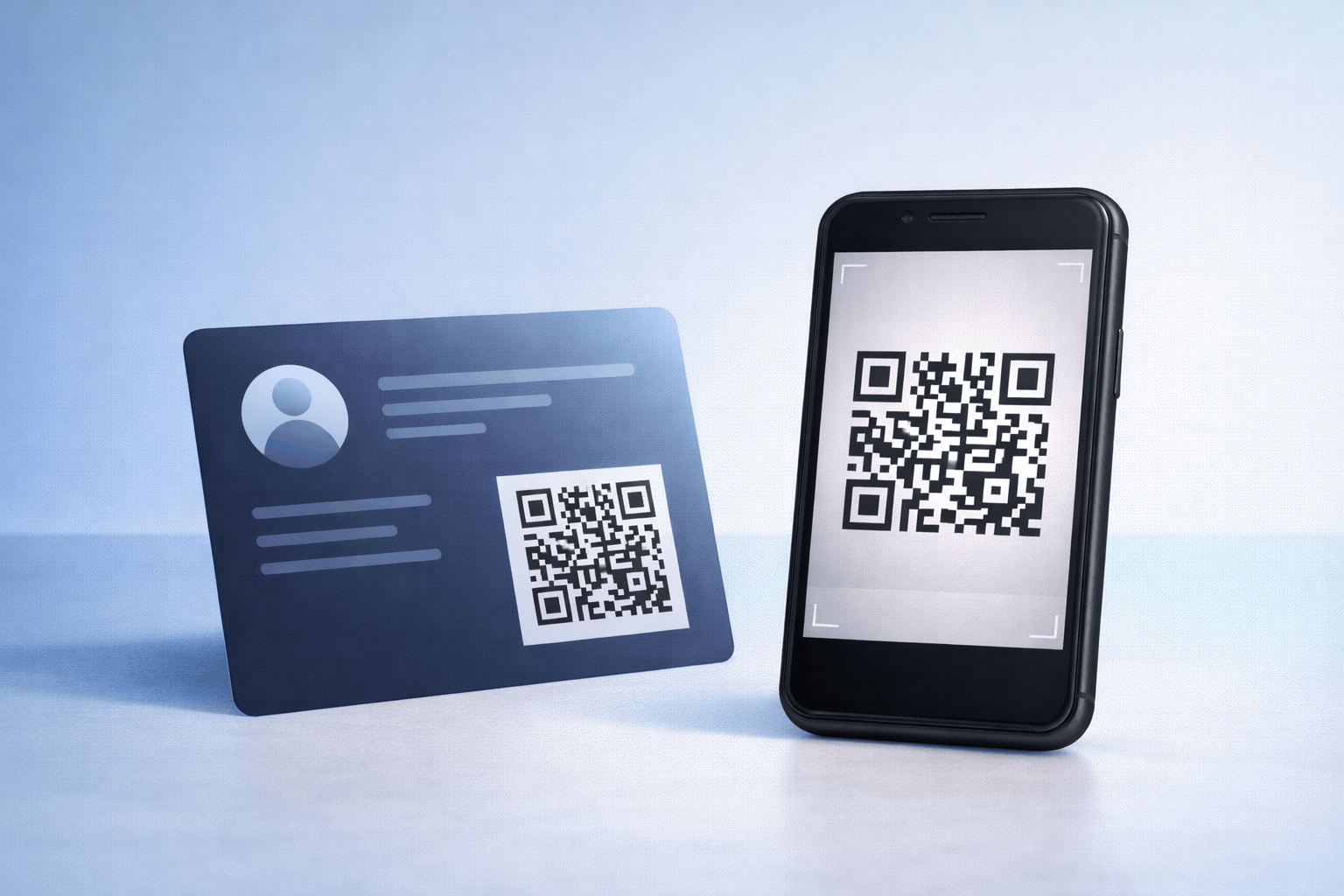
vCard QR codes are widely used as digital business cards because they make sharing contact information fast, accurate, and professional. They help eliminate errors and ensure contact details are saved correctly.
What You Need Before Creating a vCard QR Code
Before creating a vCard QR code, you should have your contact information ready. This may include your full name, phone number, email address, company name, designation, and website or social profile links.
It’s also helpful to decide how the vCard QR code will be used, such as on business cards, email signatures, resumes, event badges, or presentations. This will influence customization choices and design preferences.
How to Create a vCard QR Code (Step-by-Step)
Creating a vCard QR code follows a simple and consistent three-step process.
- 1
Choose your QR code type: Start by selecting the vCard option from the available QR Code Types so the QR code is set up to store contact information.
- 2
Enter your details & Customize: Add your contact details such as name, phone number, email, and company information. You can also customize the QR code design by adjusting color's or adding a logo while ensuring it remains easy to scan.
- 3
Download & Share: Generate the QR code and download it in your preferred format. Test it on different devices to ensure contact details are saved correctly before using it on print or digital materials.
Tools like the vCard QR Code Generator on Enqode QR follow this same flow, making it easy to create and manage digital business cards and name cards.
Why Use a vCard QR Code
vCard QR codes make sharing contact information faster and more professional. Instead of exchanging physical cards or typing details manually, users can scan and save contacts instantly.
They also reduce errors, improve accuracy, and create a modern impression during networking. vCard QR codes work well in both online and offline settings.
Common Use Cases of vCard QR Codes
vCard QR codes are commonly used on business cards, email signatures, resumes, and LinkedIn profiles. Professionals use them at networking events, conferences, and meetings to share contact details quickly.
They are also useful for sales teams, freelancers, recruiters, and consultants who frequently exchange contact information.
Best Practices for Creating vCard QR Codes
Ensure all contact details are accurate and up to date before generating the QR code. Keep the design clean and professional, with strong contrast to ensure reliable scanning.
Test the QR code across multiple devices to confirm that contact information saves correctly. Avoid overcrowding the design or using colors that reduce readability.
Common Mistakes to Avoid
One common mistake is entering incorrect or incomplete contact information, which can cause confusion. Another mistake is not testing the QR code before printing it on business cards or materials.
Using overly complex designs or placing the QR code too small can also affect scan performance.
FAQs About vCard QR Codes
A vCard QR code can store contact details such as name, phone number, email, company name, job title, and website.
Final Thoughts & Next Steps
vCard QR codes offer a modern and efficient way to share contact information. By following best practices and testing before use, you can ensure a smooth and professional experience for anyone scanning your code.
To create your own digital business card, you can use the vCard QR Code Generator on Enqode QR and generate a vCard QR code in just a few minutes.