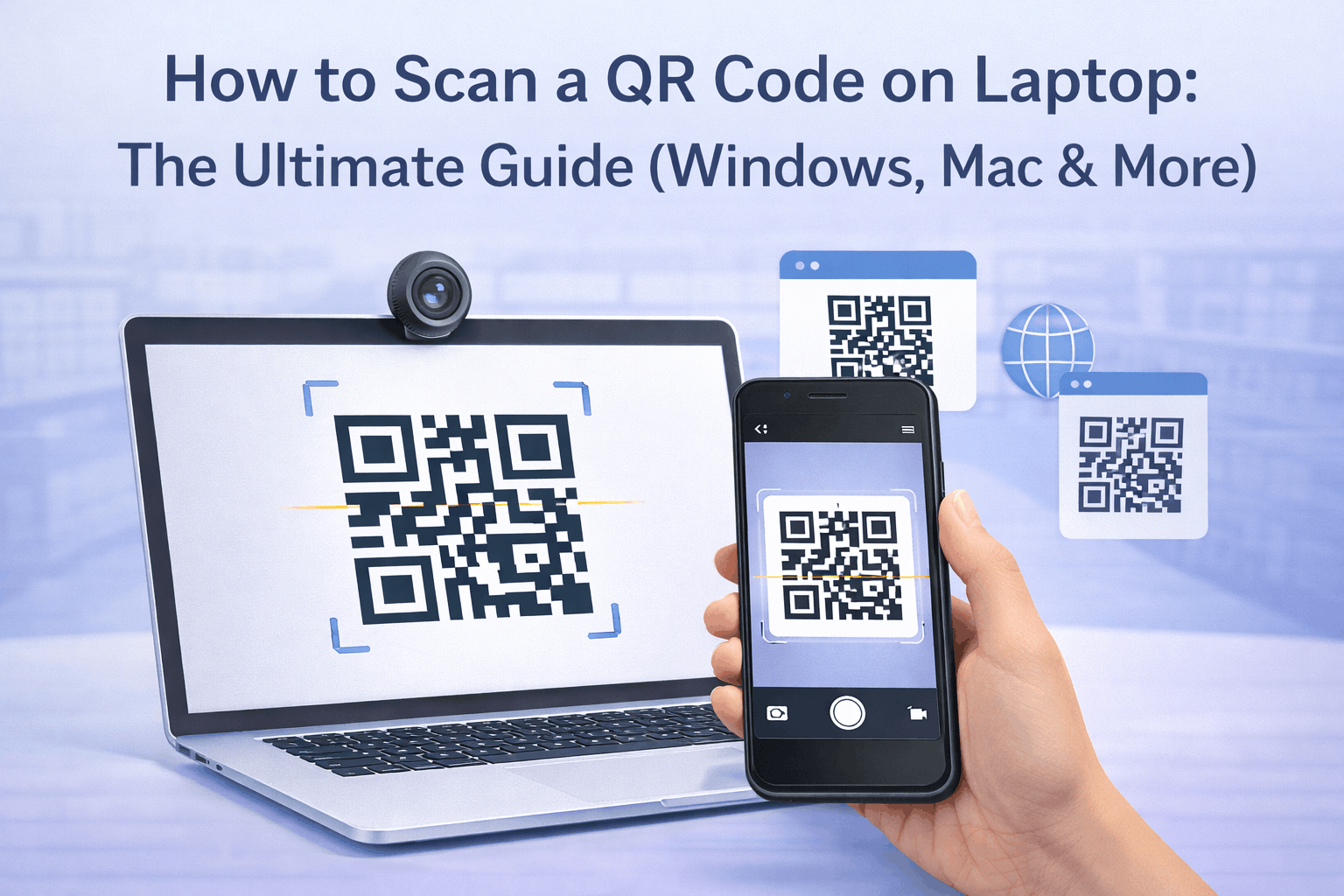
Scanning a QR code on a laptop is possible even though laptops do not have built in QR scanners like smartphones. You can scan QR codes using your laptop webcam, browser based tools, image files, or by using your smartphone as a companion device. This guide explains all practical ways to scan QR codes on a laptop across Windows and macOS devices.
How to Scan a QR Code on a Laptop
Unlike smartphones, laptops do not always include native QR code scanning features. However, there are several reliable methods to scan QR codes depending on whether the code is printed, displayed on another screen, or saved as an image.
The most common approaches include using a webcam with online tools, decoding QR codes from image files, or using a smartphone to scan codes displayed on the laptop screen.
Understanding these methods helps you choose the fastest and most convenient option for your situation.
Use Your Laptop’s Webcam with Online QR Scanners
One of the easiest ways to scan a QR code on a laptop is by using the built in webcam with an online QR scanner. These tools allow your browser to access the camera and scan the QR code directly.
Open an online QR scanner in your browser, grant camera access, and hold the QR code in front of your webcam. Once the code is detected, the decoded content will appear on the screen.
This method works well for printed QR codes or QR codes displayed on another device.
Decode a QR Code from an Image File on Your Laptop
If you have a QR code saved as an image file, you can decode it using online QR decoding tools. Upload the image file and the tool will extract the encoded information.
This method is useful when QR codes are shared through email, documents, or screenshots. It eliminates the need for a camera and works entirely within the browser.
Decoding from image files is also helpful for archiving or reviewing QR code content later.
Use Chrome or Browser Based QR Code Scanning Tools
Some browsers provide built in tools or extensions that can scan QR codes. Google Chrome, for example, includes features that allow QR code interaction and scanning.
Browser based QR scanning tools can scan QR codes using your webcam or decode QR codes from images. These tools are convenient because they do not require installing standalone applications.
Using browser based scanning keeps the process lightweight and accessible across platforms.
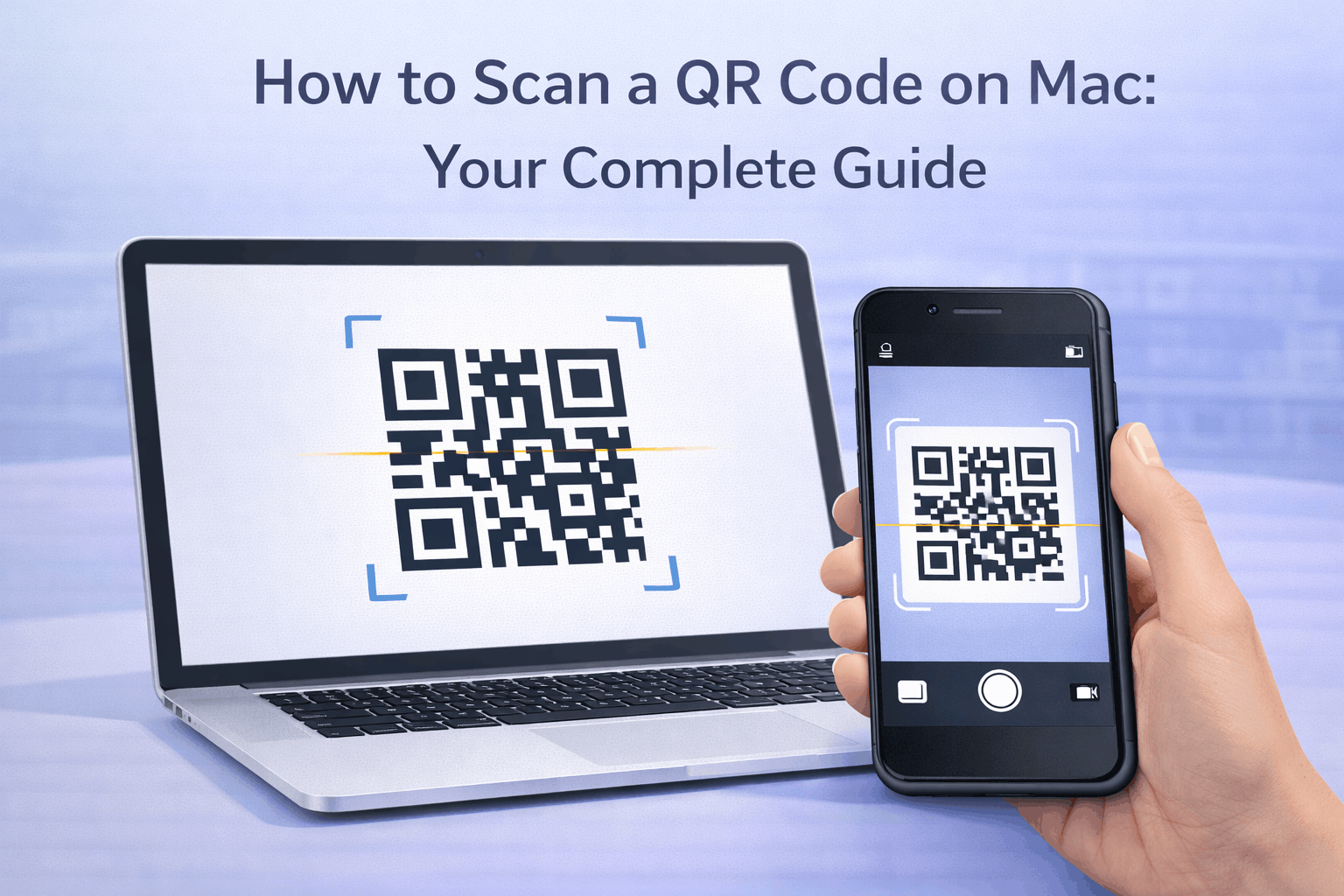
Use Built-In QR Code Features on Windows and MacOS
Certain operating system features and utilities can assist with QR code scanning. Some Windows and MacOS setups include camera or image recognition tools that can decode QR codes indirectly.
While these features may vary depending on system version, they can help users avoid installing additional software. Built in tools are generally more secure and integrate well with system permissions.
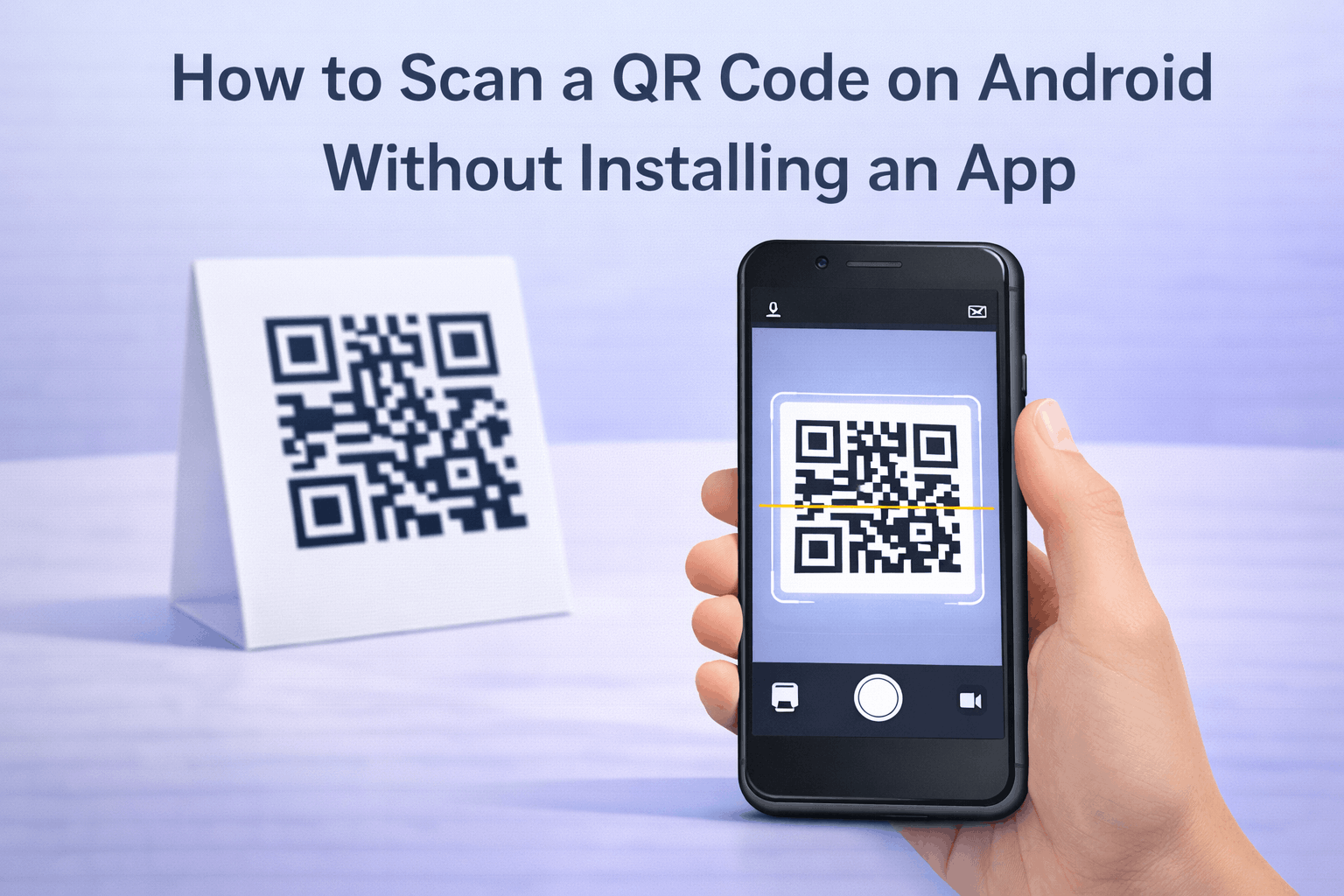
For detailed scanning workflows on mobile devices, How to Scan a QR Code on Android Without Installing an App provides helpful context when using a phone as an alternative.
Scan a QR Code on Your Laptop Screen Using a Smartphone
If a QR code is displayed on your laptop screen, the simplest solution is often to scan it using your smartphone. Open the camera or scanning feature on your phone and point it at the QR code shown on the laptop.
This method avoids any setup on the laptop and works instantly. It is especially useful for login links, downloads, or quick access scenarios.
Smartphones are optimized for QR scanning, making them a reliable companion device.
When Using a Smartphone Is the Easiest Option
In many situations, using a smartphone to scan a QR code is faster and more convenient than using a laptop. Phones are designed with native scanning capabilities and better camera focus.
If the QR code is displayed on your laptop screen, scanning with a phone usually requires fewer steps. This approach reduces troubleshooting and saves time.
For a deeper understanding of how scanning works on phones, What Is a QR Code The Complete Beginners Guide explains the basics clearly.
Common Laptop QR Code Scanning Issues and Fixes
One common issue is camera permission denial. Ensure your browser has permission to access the webcam.
Poor lighting or low camera quality can also affect scanning. Improve lighting and position the QR code clearly in front of the camera.
If scanning fails repeatedly, try decoding the QR code from an image file or use a smartphone instead. Understanding How Do QR Codes Work The Technology Behind the Black and White Squares helps explain why clarity and contrast matter.
Frequently Asked Questions
- Can laptops scan QR codes without installing software?
Yes, laptops can scan QR codes using online tools, browser based scanners, or by decoding image files without installing software.
- Is it safe to use online QR scanners?
Most reputable online QR scanners are safe, but you should always verify the destination before opening any links. For safety tips, see Are QR Codes Safe Security Risks and Best Practices.
- Why does my laptop camera not detect QR codes?
Laptop cameras may have lower resolution or focus issues. Improving lighting or switching methods often resolves the problem.
- What is the fastest way to scan a QR code on a laptop screen?
Using a smartphone to scan the QR code displayed on the laptop screen is usually the fastest method.
Conclusion
Scanning a QR code on a laptop is possible through several practical methods, including webcam based tools, image decoding, browser features, and smartphone assistance. Choosing the right approach depends on your setup and the location of the QR code. With these options, QR code scanning on laptops becomes simple and accessible.