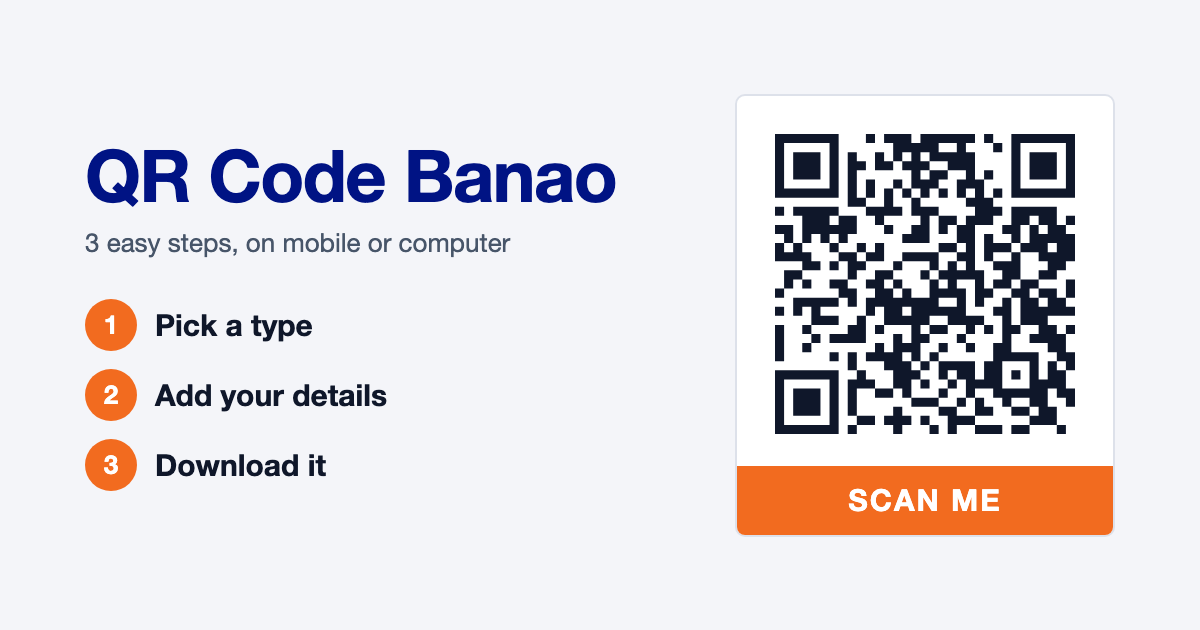
To make a QR code, open the Enqode QR generator, pick a type (such as link, UPI payment, WhatsApp or Wi-Fi), add your details, add your logo and colours if you like, and download it. It works in the browser on both mobile and computer, with no app to install.
Quick Summary
QR code banao, which means "make a QR code", takes just 3 steps: open the online QR code generator, pick a type and add your details, then download it. It works in the browser on both mobile and computer, with no app to install.
You can make a QR code for a link, UPI payment, WhatsApp, Wi-Fi, location, menu and 27 types in all, with your own logo and colours.
Table of Contents
- What is a QR code?
- What you need to make a QR code
- QR code banao in 3 steps
- Make a QR code on mobile or computer
- Which QR code should you make?
- Static or dynamic: which to pick
- What happens when someone scans it
- QR codes for shops and small businesses
- Tips for a QR code that scans every time
- Common mistakes to avoid
- FAQ
What Is a QR Code?
A QR code is a square code made of small black and white squares. It holds your information, such as a website link, UPI ID, WhatsApp number or Wi-Fi password.
Anyone can scan it with their phone camera, and the phone does the job straight away: it opens the website, opens the payment page, starts a WhatsApp chat or joins the Wi-Fi. Nothing to type.
What You Need to Make a QR Code
You need three things:
- A mobile or computer with internet and a browser, such as Chrome or Safari.
- The information to put in the code. Such as a website link, UPI ID, WhatsApp number, Wi-Fi name and password, or a Google Maps link.
- Your logo and brand colours, if you want the code to look like your shop or brand. This is optional.
QR Code Banao in 3 Steps
Making a QR code in Enqode QR takes three short steps.
- 1
Pick a type. Choose the QR code type in the generator, such as Link, Payment, WhatsApp or Wi-Fi.
- 2
Add Your Details & Customize (optional). Enter your link or details, then add your logo, colours and frame.
- 3
Download. Use a PNG for WhatsApp, Instagram or your website, and an SVG, EPS or PDF for print.
Before you print, scan the code once with your phone and check that the right thing opens.
Make a QR Code on Mobile or Computer
Enqode QR runs in the browser, so the steps are the same on mobile and computer. There's no app to download.
On Mobile
Open Chrome or Safari on your phone and go to the generator. Pick a type, add your details and download. The QR code saves to your phone's gallery or Downloads folder, so you can send it straight on WhatsApp or post it on Instagram.
On Computer
Open the generator on your laptop or computer, follow the same 3 steps and download the code. A bigger screen makes it easier to set your logo and colours, and you can send the SVG or PDF file straight to your printer or designer. A computer suits posters, banners, visiting cards and packaging best.
Which QR Code Should You Make?
Pick the right type, so people who scan get exactly what you want to give them.
UPI Payment QR Code
The customer scans and their UPI app opens, ready to pay your UPI ID. In the payment QR code generator, paste your UPI payment link, which starts with upi://pay and holds your UPI ID. PayPal and Stripe links work too. For the full steps, read how to create a payment QR code.
WhatsApp QR Code
One scan opens a WhatsApp chat with you, with your message already typed. In the WhatsApp QR code generator, pick your country code, such as +91 for India and enter your number without the leading 0. For a group, you can paste its invite link.
Wi-Fi QR Code
Guests and customers join your Wi-Fi with one scan, with no password to type. In the Wi-Fi QR code generator, enter the network name, password and security type.
Location QR Code
One scan opens the maps app at your shop's location, with directions one tap away. In the location QR code generator, paste your Google Maps share link or enter the latitude and longitude.
Menu QR Code
Customers at your restaurant, café or dhaba scan to see your menu on their phone. In the menu QR code generator, upload your menu as a PDF or photo.
Link QR Code
One scan opens your website, Instagram page, YouTube video or Google Form. In the link QR code generator, paste any link.
File QR Code
One scan downloads your document straight to the phone, such as a price list, brochure, admission form or certificate. In the file QR code generator, upload your PDF, Word, PowerPoint or Excel file. File QR codes are dynamic, so you can replace the document later and the printed code keeps working.
vCard QR Code
One scan opens your contact page with your name, phone number, email and links, and one tap on Save to Contacts puts you in their phone. In the vCard QR code generator, add your details and photo, then print the code on your visiting card. For the full steps, read how to create a vCard QR code.
Static or Dynamic: Which to Pick
Both work the same way when scanned. The difference shows after printing.
- Static stores your information inside the code. Once printed, it works forever, with no scan limit. It suits Wi-Fi, a UPI ID or a link that stays the same.
- Dynamic lets you change the link after printing, without printing a new code. It also counts every scan, with the city, country and device, so you can see which poster or flyer gets the most scans.
What Happens When Someone Scans It
Whatever you put in the code opens on their phone straight away.
- They point their phone camera at the code.
- The phone shows a link or button. They tap it.
- Your website, UPI app, WhatsApp chat, maps or menu opens.
- For a Wi-Fi code, the phone asks "Join?", and one tap connects them.
Most Android phones and iPhones scan QR codes with the camera, without a separate app.
QR Codes for Shops and Small Businesses
A QR code works anywhere you want people to reach you without typing.
Grocery stores, medical stores and tea stalls put a UPI payment QR code on the counter. Restaurants and dhaba's put a menu QR code on the table, and cafés and hotels put up a Wi-Fi QR code so staff don't have to share the password again and again. Coaching centres, salons and boutiques print a WhatsApp QR code on their visiting cards and pamphlets, and a location QR code outside the shop helps new customers find the way. People even add a location or event QR code to wedding cards.
Tips for a QR Code That Scans Every Time
A good QR code scans the first time, and people know what they'll get.
- Add a few words on the frame. Pick a frame in the generator and add words such as "SCAN TO PAY" or "SEE THE MENU".
- Print it big enough. At least 2.5 cm (1 in) on a visiting card or pamphlet, and 10 cm (4 in) or more on a poster read from a distance. Our minimum QR code size for printing guide has sizes for every spot.
- Use a dark code on a light background. A black or dark code on white or a pale colour scans fastest.
- Add your logo. Your logo in the centre shows the code is yours, so people scan it with confidence.
Common Mistakes to Avoid
Most QR code problems come from a small mistake.
- Printing without testing. Scan it with an iPhone and an Android phone before you print.
- A wrong number or UPI ID. One wrong digit sends the payment or chat to the wrong place. Check your details twice.
- A tiny code. A small code squeezed into a corner won't scan from a distance.
- A busy or dark background. A pale code on a photo or dark colour is hard for the camera to read.
FAQ
Conclusion
QR code banao in just 3 steps: pick a type, add your details and download it, on mobile or computer. For your shop, pick a UPI payment, WhatsApp, Wi-Fi, location or menu QR code, add your logo, print it at the right size and scan it once before you print.