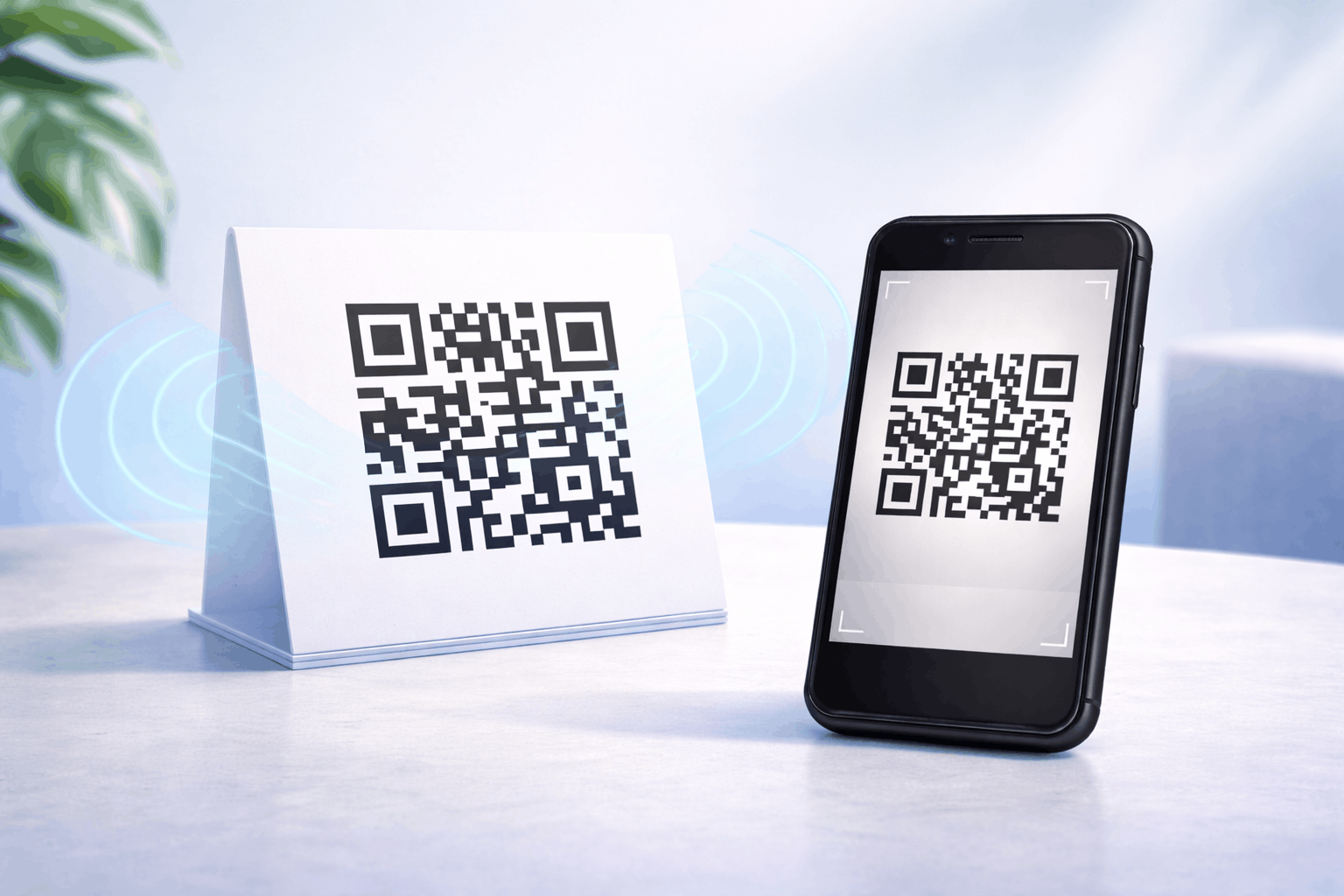
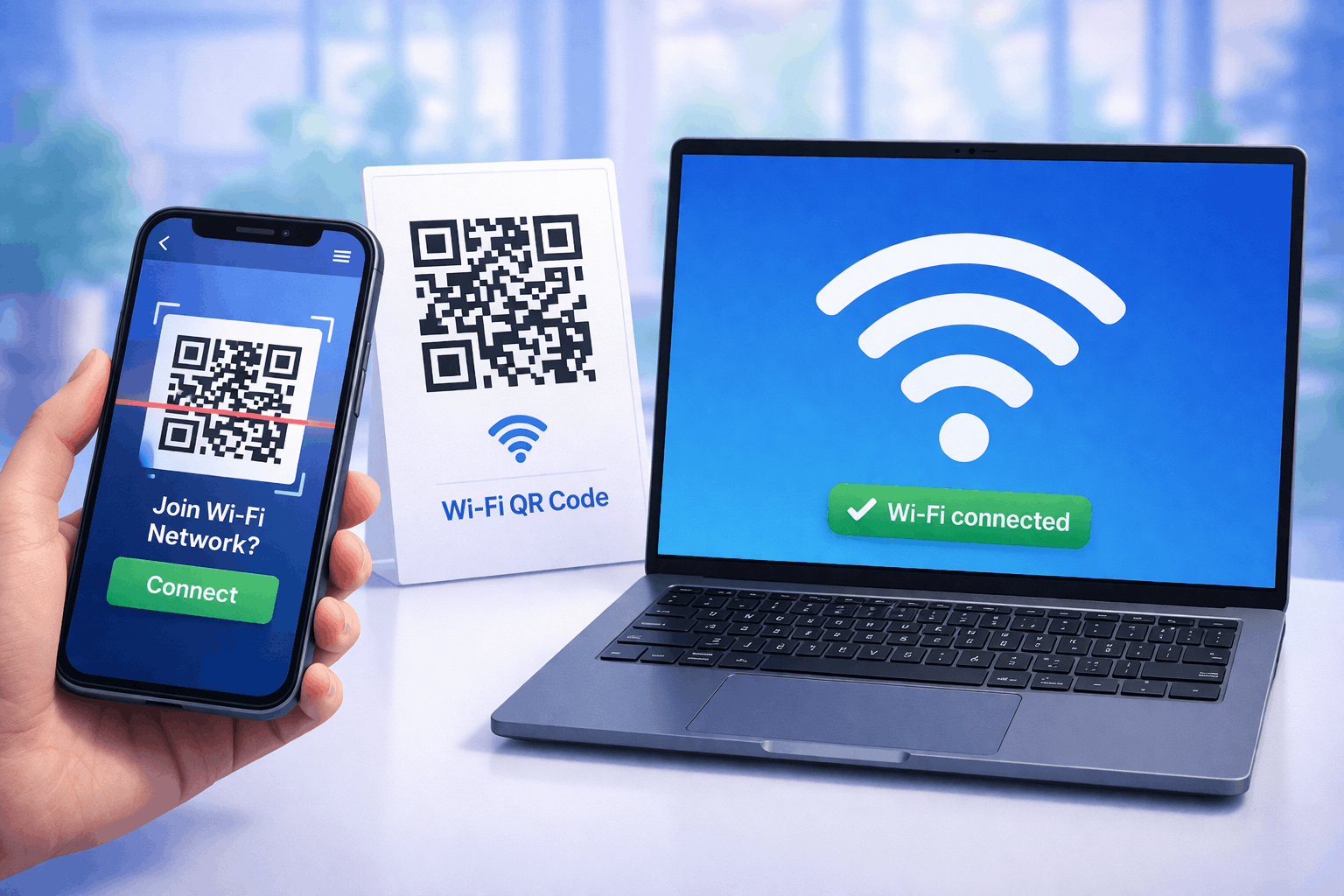
Wi-Fi QR codes allow users to connect to a wireless network instantly without typing passwords. By scanning a QR code, devices can automatically join a Wi-Fi network, making the process faster and more convenient. This guide explains how Wi-Fi QR codes work, their benefits, how to create and scan them, and best practices for safe and effective use.
What Is a Wi-Fi QR Code and How Does It Work
A Wi-Fi QR code stores network credentials such as the network name, password, and security type in a scannable format. When scanned, the device reads this information and automatically connects to the network.
Instead of manually entering Wi-Fi details, users simply scan the QR code using their phone camera or built-in scanning feature. This reduces errors and improves user experience.
Wi-Fi QR codes work across most modern smartphones and are widely used in homes, offices, cafés, hotels, and public spaces.
Benefits of Using QR Codes for Wi-Fi Sharing
One of the biggest benefits of Wi-Fi QR codes is convenience. Guests can connect to the internet instantly without asking for passwords or typing long credentials.
Wi-Fi QR codes also reduce mistakes caused by incorrect password entry. This is especially helpful when passwords include special characters.
From a business perspective, Wi-Fi QR codes improve customer experience and save time for staff. They are commonly used in hospitality, retail, and coworking spaces.
Static vs Dynamic Wi-Fi QR Codes
Static Wi-Fi QR codes store fixed network credentials. Once created, the information cannot be changed. These work well for networks where details rarely change.
Dynamic Wi-Fi QR codes allow you to update network information later without creating a new QR code. This is useful if passwords change or multiple networks are managed.
Understanding this difference helps you choose the right option. A deeper explanation is available in Types of QR Codes Static vs Dynamic What’s the Difference.
How to Create a Wi-Fi QR Code Step by Step
Creating a Wi-Fi QR code follows a simple three-step process and allows users to connect to a network without typing passwords.
- 1
Choose your QR code type: Select the Wi-Fi option from the available QR Code Types so the QR code is configured specifically for network access.
- 2
Enter network details and Customize: Add your Wi-Fi network name (SSID), password, and security type. You can then customize the QR code design by adjusting color's or adding a logo, while keeping scan readability in mind.
- 3
Download and Share: Generate the QR code, download it in your preferred format, and test it on multiple devices to ensure it connects correctly.
Tools like the Wi-Fi QR Code Generator on Enqode QR follow this same flow, making it easy to share Wi-Fi access securely and conveniently.
How to Scan a Wi-Fi QR Code and Connect on iPhone and Android
On iPhone, open the camera app and point it at the Wi-Fi QR code. A notification will appear prompting you to join the network.
On Android, most devices support QR scanning through the camera app or Google Lens. Scanning the QR code will display a connect option.
If needed, refer to How to Scan a QR Code on Android Without Installing an App for device-specific guidance.
Common Wi-Fi QR Code Mistakes to Avoid
One common mistake is sharing Wi-Fi QR codes publicly without considering network security. Always use appropriate network permissions.
Another mistake is failing to update QR codes when network credentials change. This leads to connection issues and user frustration.
Placing QR codes in hard-to-scan locations or printing them at very small sizes can also reduce usability. Always test QR codes before sharing them.
Frequently Asked Questions
- Are Wi-Fi QR codes safe to use?
Yes, Wi-Fi QR codes are safe when shared responsibly. For public networks, it is recommended to use guest Wi-Fi access. Learn more in Are QR Codes Safe Security Risks and Best Practices.
- Do Wi-Fi QR codes work on all phones?
Most modern smartphones support Wi-Fi QR code scanning, including iPhones and Android devices.
- Can I change the Wi-Fi password without reprinting the QR code?
This is only possible if you use a dynamic Wi-Fi QR code. Static QR codes require regeneration.
- Where should I place a Wi-Fi QR code?
Wi-Fi QR codes work best near entrances, reception desks, tables, or any area where users request internet access.
Conclusion
Wi-Fi QR codes provide a simple and efficient way to connect users to the internet without manual input. They improve convenience, reduce errors, and enhance user experience in both personal and business settings. By choosing the right type of QR code and following best practices, you can make Wi-Fi access seamless and secure.